RePen is a free screen-annotation and presentation overlay for Windows. Circle, underline, highlight and explain live — over PowerPoint, PDFs, browsers, code editors and video — without switching windows or stopping your lesson.
Download from GitHub Releases Microsoft Store — v1.1 coming soon
Installer and portable builds on GitHub. The portable build runs from a folder or USB drive — nothing to install.
RePen was built by a head teacher who presents and teaches every day. Every tool answers a real classroom or meeting moment: pointing at the exact line, keeping attention on one part of the screen, taking a break the whole class can see, and saving the lesson afterwards.

RePen places a transparent drawing layer above your desktop. The app underneath stays open and visible; your marks live on the overlay, so the original slide, PDF or web page is never edited.
When the overlay is not enough space, switch to a full board. Boards are multi-page, and your work is never throwaway: save it, reopen it later, or hand it out as a PDF.
Whiteboard, blackboard, ruled lines, grid, music staff and plain — pick the surface that fits the subject, from maths workings to handwriting practice.
Save a whole multi-page session — strokes, notes, boards and mind maps — and reopen it exactly where you left off. Legacy session files still load.
Export multi-page board notes to a shareable PDF — lecture notes for students, recap sheets for colleagues, or a record of a support session.
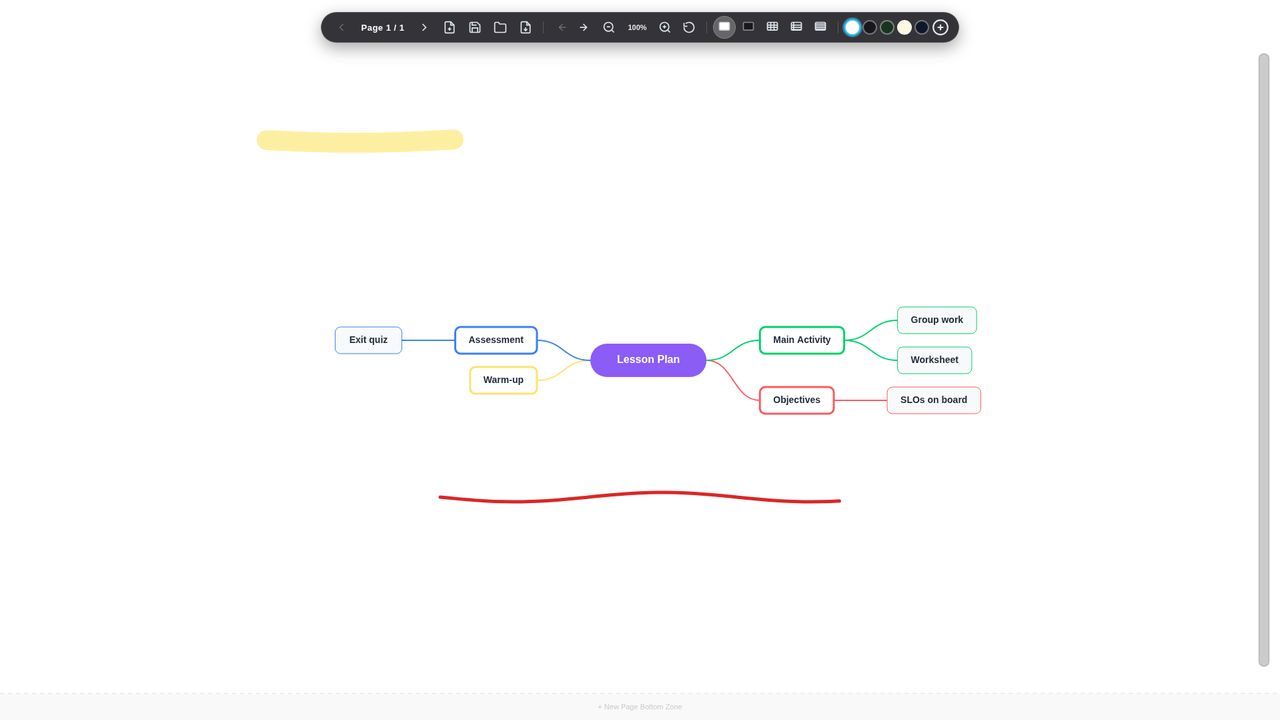
Build a mind map directly on the board — no separate app, no export-and-import dance. Start from a central topic and grow the map with the keyboard: Tab adds a child node, Enter adds a sibling, double-click renames a node, and dragging a node moves it with its whole subtree. Auto Layout balances the branches left and right, mind maps are saved inside .rpen sessions, and they are included when you export to PDF. Toggle the tool with Ctrl+Shift+M.
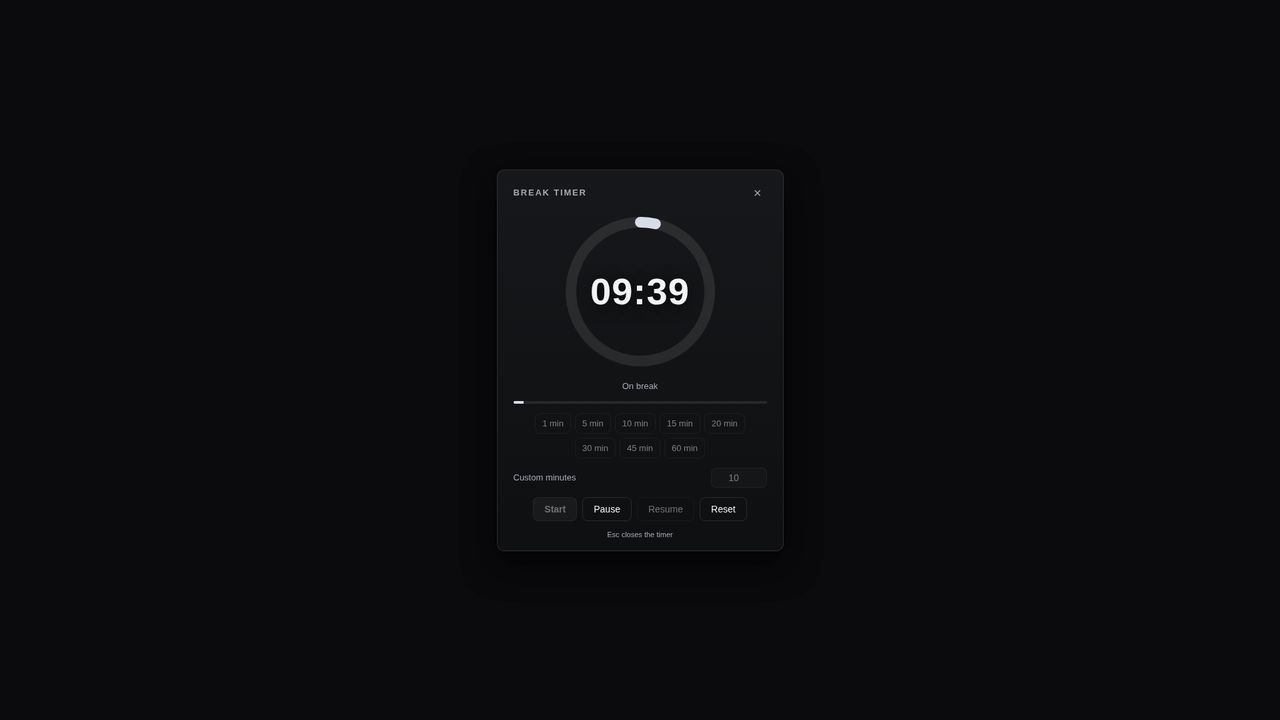
An audience-facing countdown for class breaks, workshop pauses and presentation intervals. Choose a preset from 1–60 minutes or a custom duration up to 240 minutes, then start, pause, resume or reset. The timer fills the screen with big digits and a progress ring, and at zero it plays a sound and flashes — and it deliberately stays visible in recordings, because it is for the audience, not just for you. Open it with Ctrl+Alt+T.
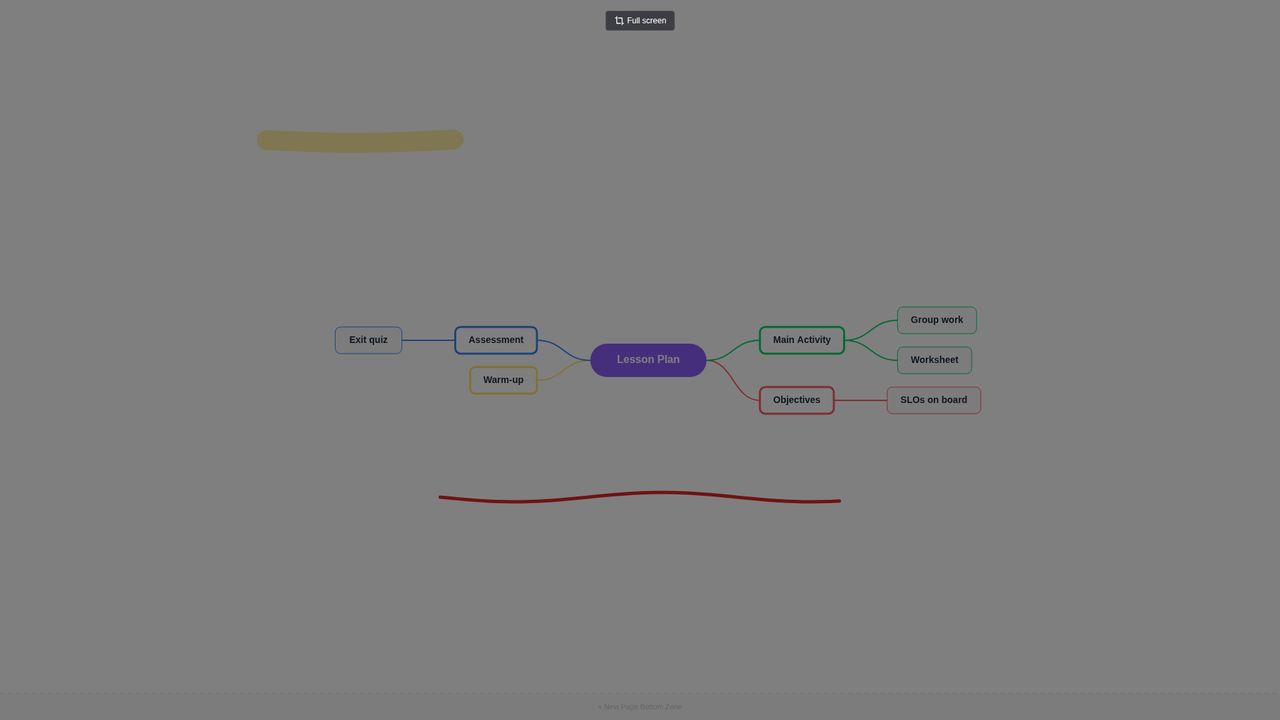
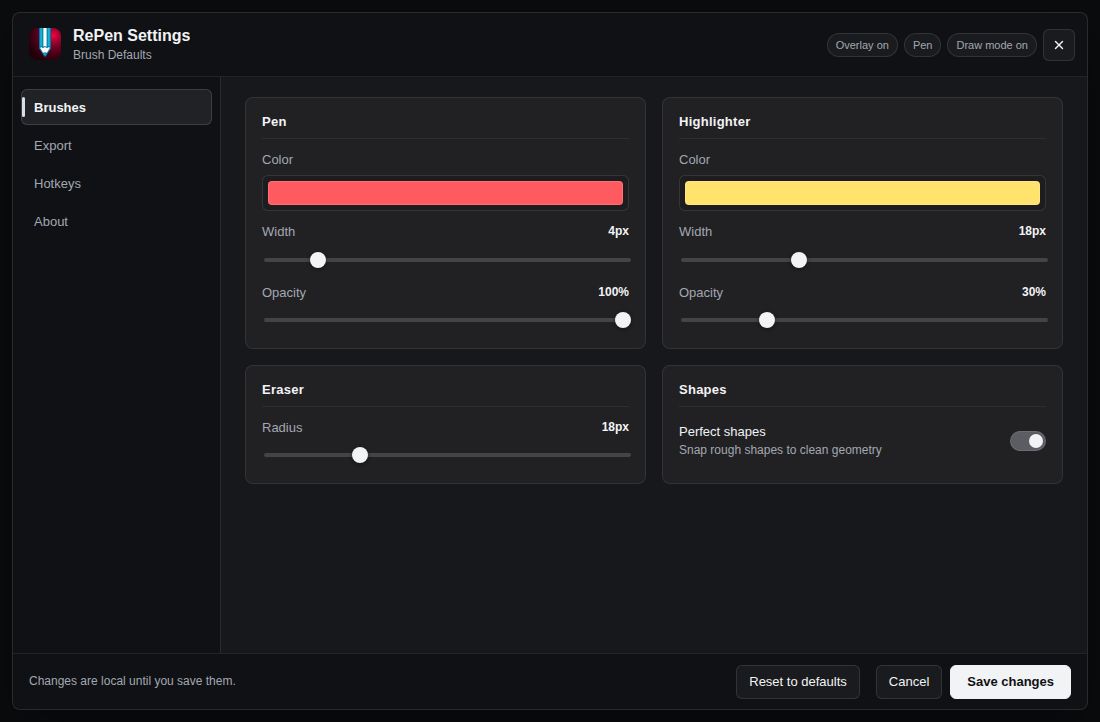
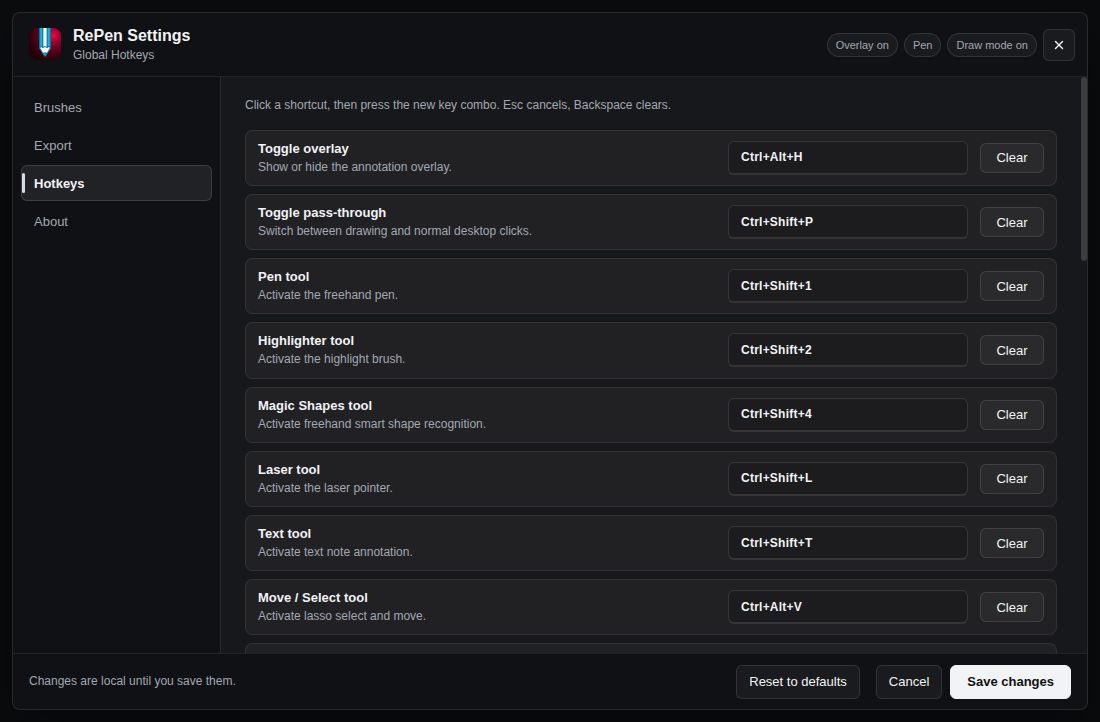
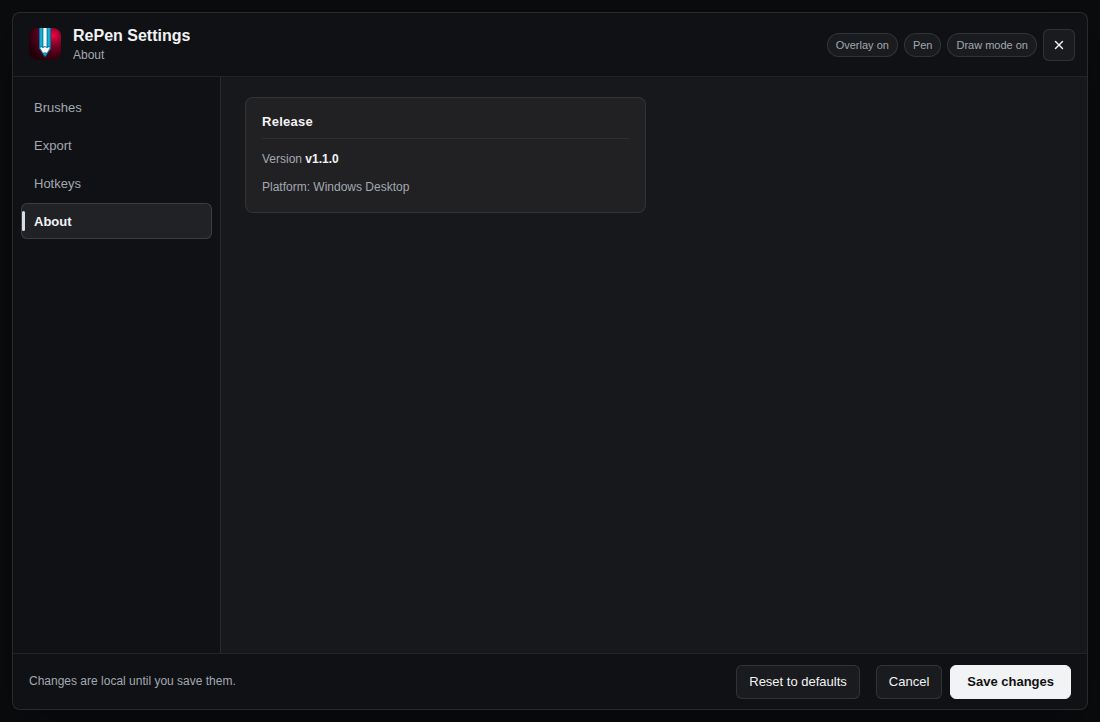
Press Ctrl+Shift+S to capture a region of the screen — annotations included — then save it as PNG, JPEG or WebP, or copy it straight to the clipboard. New in v1.1, the snip window also has a one-click Full screen capture button. Settings cover brushes, export, every hotkey, and an About page that quietly checks GitHub Releases on startup (on by default, switchable) and simply shows a badge when a newer version exists — it never downloads or installs anything by itself.
Two honest routes. Pick the one that suits you; both get you the same free, open-source app.
The v1.1 ZIP build is on GitHub Releases: unzip it anywhere (a folder, or a USB drive for the portable way of working) and run RePen.exe. No installation, no account, no cost. Windows SmartScreen may appear on first launch because the ZIP build is unsigned — that prompt disappears with the Store package below.
The RePen name is reserved in the Microsoft Store (Store ID 9PCCK3JFGL96) and the v1.1 Store package is being prepared. It is not live in the Store yet — when it is, this will be the easiest install route, with Microsoft's signature and Store updates. Until then, please use the GitHub build above.
System requirements: 64-bit Windows 10 or Windows 11. A mouse is enough for arrows, shapes and highlighting; a stylus or drawing tablet is more comfortable for handwriting and longer lessons. Source code: github.com/iRehmanAhmad/RePen.
Launch RePen before your class, meeting or recording, and check the floating toolbar is visible on your desktop.
Your PowerPoint slideshow, a PDF in your usual reader, a website, a video or a code editor — positioned the way your audience should see it.
Choose the pen for writing, the highlighter so the text underneath stays readable, or shapes and arrows for clean diagrams. Underline, circle, connect.
Toggle pass-through (Ctrl+Shift+P) to click buttons, scroll or change slides in the app underneath, then toggle back and keep annotating.
Use the spotlight, laser pointer or magnifier when one line, value or control is the whole point of what you are saying.
Clear the overlay when a point is done, switch to a board when you need writing space, and save the session as .rpen or export it to PDF for your students or team.
| Shortcut | Action |
|---|---|
| Ctrl+Shift+P | Toggle pass-through mode (use the apps underneath) |
| Ctrl+Shift+S | Screenshot / region snip |
| Ctrl+Shift+M | Toggle the Mind Map tool (v1.1) |
| Ctrl+Alt+T | Open the Break Timer (v1.1) |
| Ctrl+Shift+5 | Toggle shape perfection on/off (v1.1) |
| Ctrl+Shift+R | Revert an auto-perfected shape |
| Ctrl+Alt+R / Ctrl+Alt+P | Start/stop and pause/resume recording (v1.1 hotkeys; recording ships with the Windows-built package) |
Presenting over a slideshow or a document? The main site's guide on how to draw on your screen in Windows for free walks through PowerPoint, PDF and browser workflows in detail, and the RePen page on rehmanahmad.com covers the tool from a teaching perspective.
Only what actually shipped in v1.1 — verified against the release build, not a roadmap.
Central node, Tab for a child, Enter for a sibling, double-click to rename, drag a node with its subtree, ± handles to add/remove, and Auto Layout balancing branches left/right. Saved in .rpen sessions and included in PDF export.
Presets from 1–60 minutes plus custom durations up to 240 minutes, start/pause/resume/reset, a fullscreen overlay with a progress ring, and a sound + flash alert at zero. Stays visible in recordings — it is for the audience.
Ctrl+Alt+R starts/stops recording and Ctrl+Alt+P pauses/resumes it. Recording itself arrives with the Windows-built package (see the honest note above).
RePen silently checks GitHub Releases on startup (on by default, switchable in Settings → About). A newer version shows a badge on the Settings button and a card linking to the release page. Dismiss is per-version; being offline is a silent no-op. It notifies — it never self-installs.
The snip window gains a Full screen capture button, next to region snip with annotations and save as PNG/JPEG/WebP or copy to clipboard.
Turn shape perfection on or off in Settings or with Ctrl+Shift+5 — each perfected shape stays reversible. And v1.1 ships as a no-install ZIP build: unzip anywhere, including a USB drive, and run.
Install or unzip RePen, open it, then open the app you want to explain. Pick the pen, highlighter, a shape or an arrow from the floating toolbar and draw directly over the screen. The drawing sits on a transparent overlay above your apps, so nothing underneath is changed. Toggle pass-through mode with Ctrl+Shift+P whenever you need to click, scroll or type in the app below.
Yes — RePen is free and open source, with no accounts, no ads and no telemetry. If you are looking for a free alternative to paid annotation tools such as Epic Pen, RePen covers the core presenting toolkit — pen, highlighter, shapes, spotlight, laser pointer, magnifier, boards and PDF export — and adds a mind map tool and an audience break timer. It is Windows-only, and its screen recording arrives with the Windows-built package rather than the current ZIP.
Yes. Start your slideshow as normal, then use RePen's overlay to circle, underline, highlight or point at parts of the slide while you present. Because the marks live on the overlay, your slide file itself is untouched, and you can clear everything with one action and move on.
Yes. Open the PDF in your usual reader and draw over the visible page — the original document is not modified. If you need the explanation saved, work on a RePen board alongside it and export the session to PDF, or save the session as a .rpen file and reopen it later.
A mouse is enough for circling buttons, drawing arrows, highlighting text and making short marks. A stylus, touchscreen or drawing tablet is more comfortable for handwriting, equations and longer lessons.
From this site's links: GitHub Releases for the current v1.1 ZIP build, and the Microsoft Store once the v1.1 Store package is live. Downloading from the official website or the GitHub releases page is the safe route; Windows SmartScreen may appear on first launch of the unsigned ZIP build.
None. There are no accounts, analytics, telemetry, crash reporting or ads, and everything you create stays as local files on your own PC. The only network connections are a startup version check against GitHub Releases (switchable in Settings → About) and an optional speech-to-text model download that only happens if you start it. See the privacy policy.
Found a bug, or missing a feature your classroom needs? The fastest route is a GitHub issue — it keeps requests public, searchable and trackable. General contact routes are on the main site.